
How to Stop Buffering on FireStick 4K, Lite and Fire TV Cube
9 Fixes to Stop FireStick Buffering
Expert-tested solutions for all FireStick models — Lite, 4K, 4K Max, Fire TV Cube
Buffering on a FireStick is one of the most common complaints among streaming users. Whether you’re watching live IPTV channels, movies, or sports, a spinning buffer wheel kills the experience. This guide covers every cause with precise, tested fixes.
⚠ Why Your FireStick Keeps Buffering
- Slow or unstable internet — below minimum speed for your streaming quality
- Weak Wi-Fi signal — distance or obstacles between router and FireStick
- ISP throttling — provider slowing streaming traffic at peak hours
- Background apps consuming RAM and CPU while you stream
- Corrupted app cache causing playback errors
- Too many devices sharing bandwidth simultaneously
- Overheating causing thermal throttling of the processor
- Outdated Fire OS missing performance patches
- Low internal storage slowing all device operations
9 Proven Fixes for FireStick Buffering
Restart Your FireStick
A full reboot clears app caches, refreshes network connections, and resolves most temporary software glitches causing buffering.
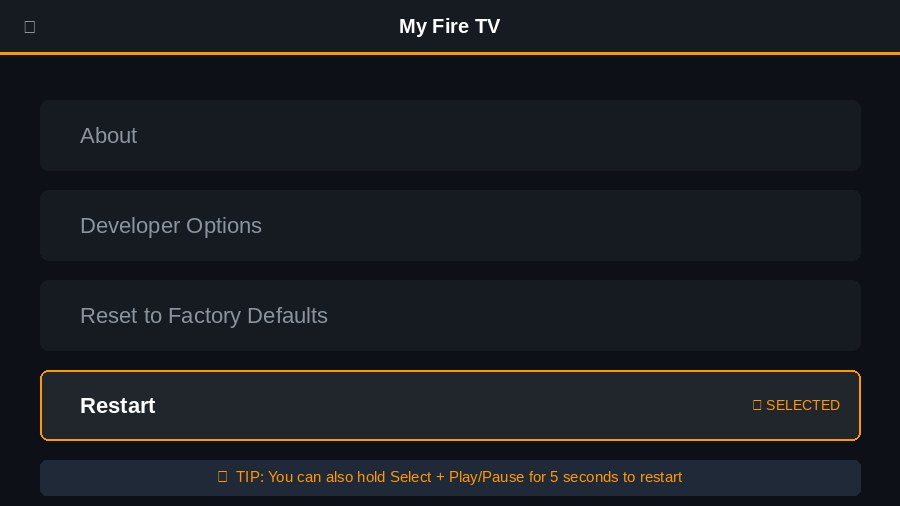
- Go to Settings → My Fire TV → Restart
- Confirm the restart
- Wait 60 seconds for a complete reboot
- Reopen your streaming app and test
Check Your Wi-Fi Signal and Speed
Inadequate internet speed or weak Wi-Fi signal is the primary driver of FireStick buffering. You need at least 5 Mbps for HD and 25 Mbps for 4K.
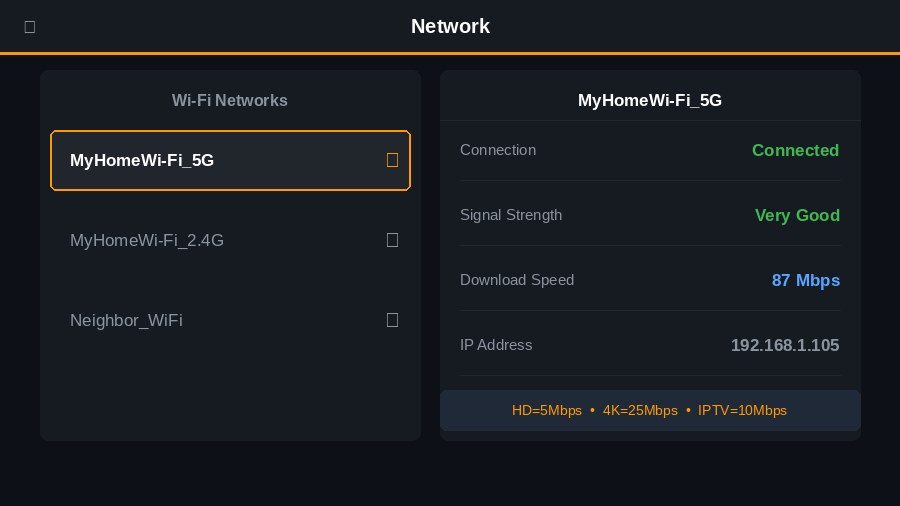
- Navigate to Settings → Network
- Highlight your Wi-Fi connection
- Check the Signal Strength reading on the right panel
- If “Poor” or “Fair” — move router closer or use a Wi-Fi extender
- For guaranteed stability, use a wired Ethernet connection via Amazon Ethernet Adapter
Use a VPN to Bypass ISP Throttling
Many internet providers deliberately slow streaming traffic during peak hours. A VPN encrypts your connection, hiding streaming activity from your ISP and restoring full speed.
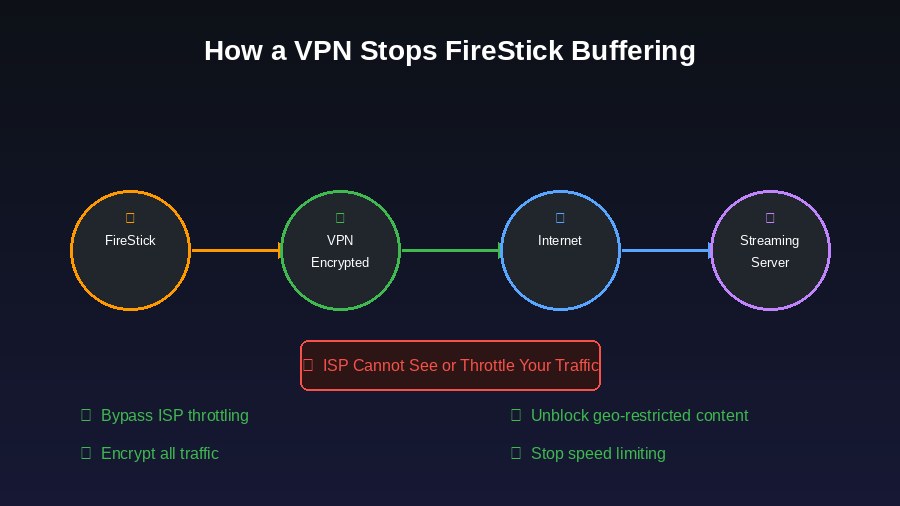
- Download a reputable VPN from the Amazon App Store
- Install and launch it
- Connect to a server geographically close to you
- Retest your streaming — throttling-related buffering will stop immediately
Free Up RAM by Closing Background Apps
FireStick has only 1–2 GB RAM. Apps running silently in the background consume this memory, leaving insufficient resources for smooth video playback.
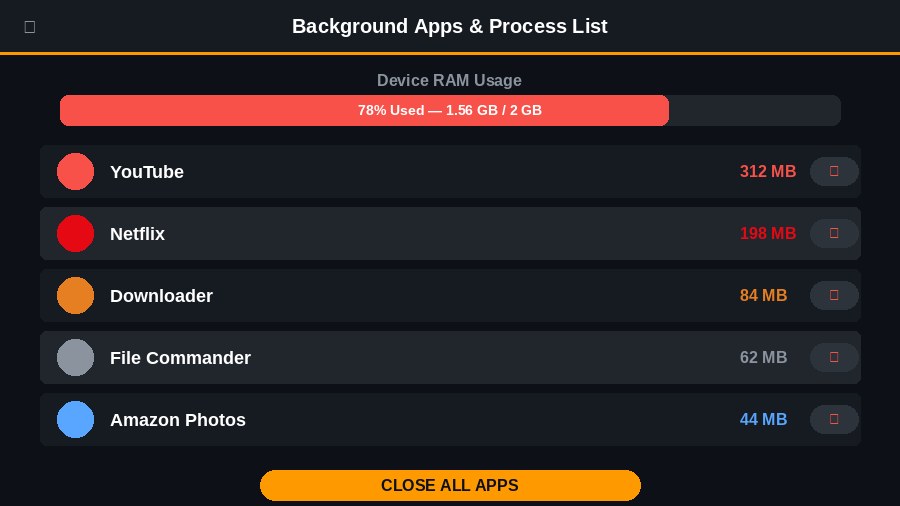
- Download Background Apps and Process List from the App Store (free)
- Open the app to see all running processes
- Tap Close All Apps in the top-left
- Force-stop each app when prompted
Clear Cache and Data of Streaming Apps
Accumulated cache data can become corrupted over time, causing apps to stutter or freeze mid-stream. Clearing cache is safe and takes seconds.
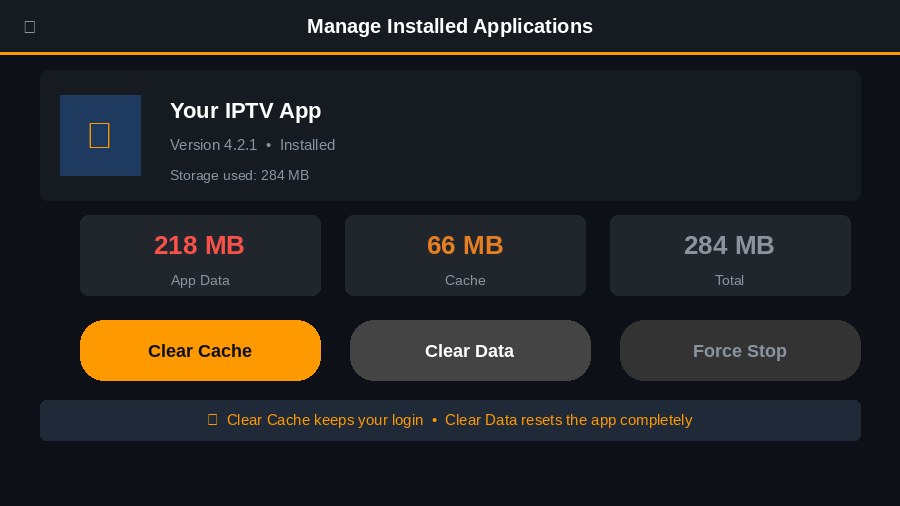
- Go to Settings → Applications → Manage Installed Applications
- Select the app causing buffering
- Tap Clear Cache
- If buffering continues, tap Clear Data to reset the app
Disable Amazon’s Background Data Collection
Amazon runs constant background monitoring processes to collect usage data. Disabling these frees CPU resources and reduces system overhead.
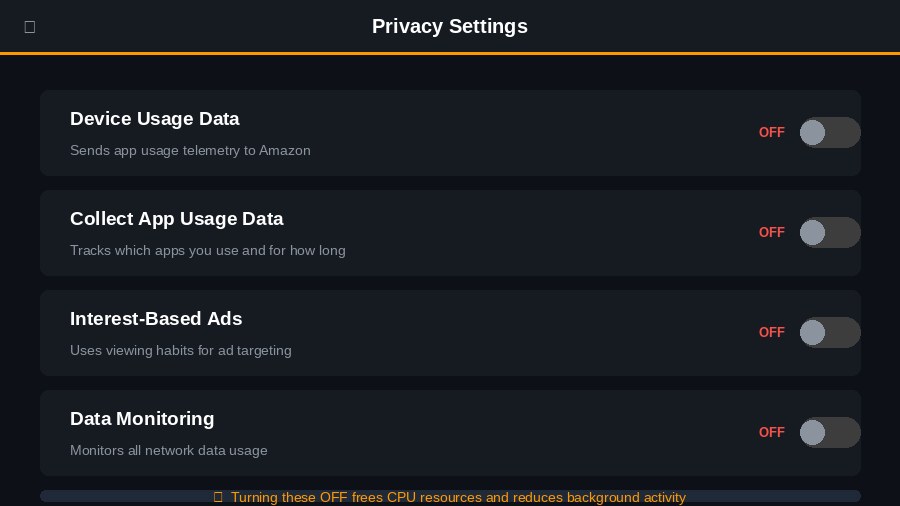
- Go to Settings → Preferences → Privacy Settings
- Turn OFF Device Usage Data
- Turn OFF Collect App Usage Data
- Press back, open Data Monitoring, and turn it OFF
Update Your FireStick to the Latest Fire OS
Amazon releases Fire OS updates that include performance patches and network stack improvements. Running an outdated OS version can cause streaming degradation.
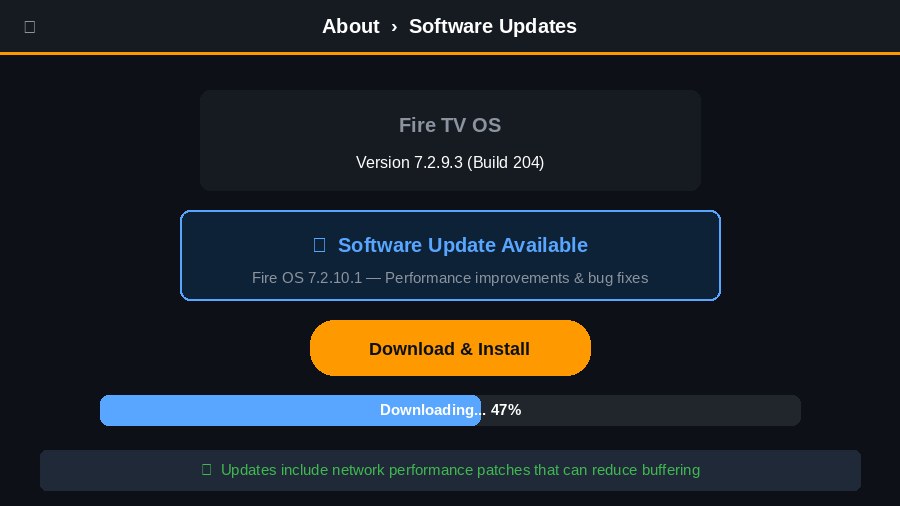
- Navigate to Settings → My Fire TV → About → Check for Updates
- Download and install any available updates
- FireStick will restart automatically
- Test streaming performance after the update completes
Prevent Overheating
The FireStick has no cooling fan. Extended use causes heat to build up, triggering thermal throttling that reduces processing power and causes buffering.
- Use the included HDMI extender cable — never plug FireStick directly into the TV
- Ensure there is clear airflow around the device
- Unplug from power when not actively watching
- If the device feels hot, unplug it and let it cool for 30 minutes
Reduce Network Congestion
Multiple devices streaming or downloading simultaneously divides your available bandwidth.
- Pause large downloads on other devices during streaming
- Enable QoS settings on your router to prioritize FireStick traffic
- Upgrade your internet plan if 4+ devices stream simultaneously
Frequently Asked Questions
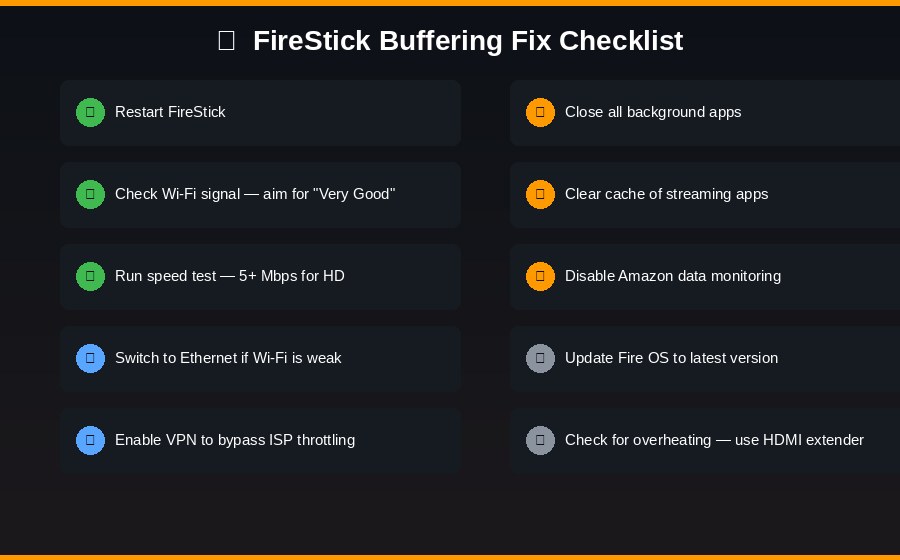
✅ Quick Checklist
✓ Restart FireStick
✓ Check Wi-Fi signal — aim for “Very Good”
✓ Run speed test (5+ Mbps for HD)
✓ Switch to Ethernet if Wi-Fi is weak
✓ Enable a VPN to bypass ISP throttling
✓ Close all background apps
✓ Clear cache of streaming apps
✓ Disable Amazon data monitoring
✓ Update Fire OS to latest version
✓ Check for overheating — use HDMI extender